Pose Library Studio is now available. Access the full pose library and custom sessions.
How to Use the Pose Library Tool
A quick guide to starting and customizing your drawing sessions.
Pose Library is designed to make figure drawing practice simple and consistent. Instead of searching for reference images or managing timers, the tool presents poses automatically so you can stay focused on drawing.
This guide will walk you through how to start a session, customize your practice, and navigate the pose viewer.

Navigation
Quick Start
The fastest way to begin practicing is to start a preset drawing session.
Simply click the Start Pose Viewer button. The viewer will launch with a standard session already prepared.
A typical session includes:
- 6 x 30-second poses
- 5 x 1-minute poses
- 5 x 2-minute poses
- 1 x 5-minute pose
This sequence is designed to gradually warm up your observation and drawing skills. The short poses encourage quick gesture drawings, while the longer poses allow you to slow down and observe structure and proportions.
Once the viewer starts, the poses will change automatically when the timer ends. All you need to do is focus on drawing.
Custom Sessions and Filters
If you'd like more control over your practice sessions, you can log in to unlock additional features.
When logged in, you can:
- Create custom pose sessions
- Choose your reference type
- Switch between the `Body`, `Anatomy`, `Portrait`, `Local`, and `Favorites` tabs
- Filter poses by area of focus when a gallery includes those tags
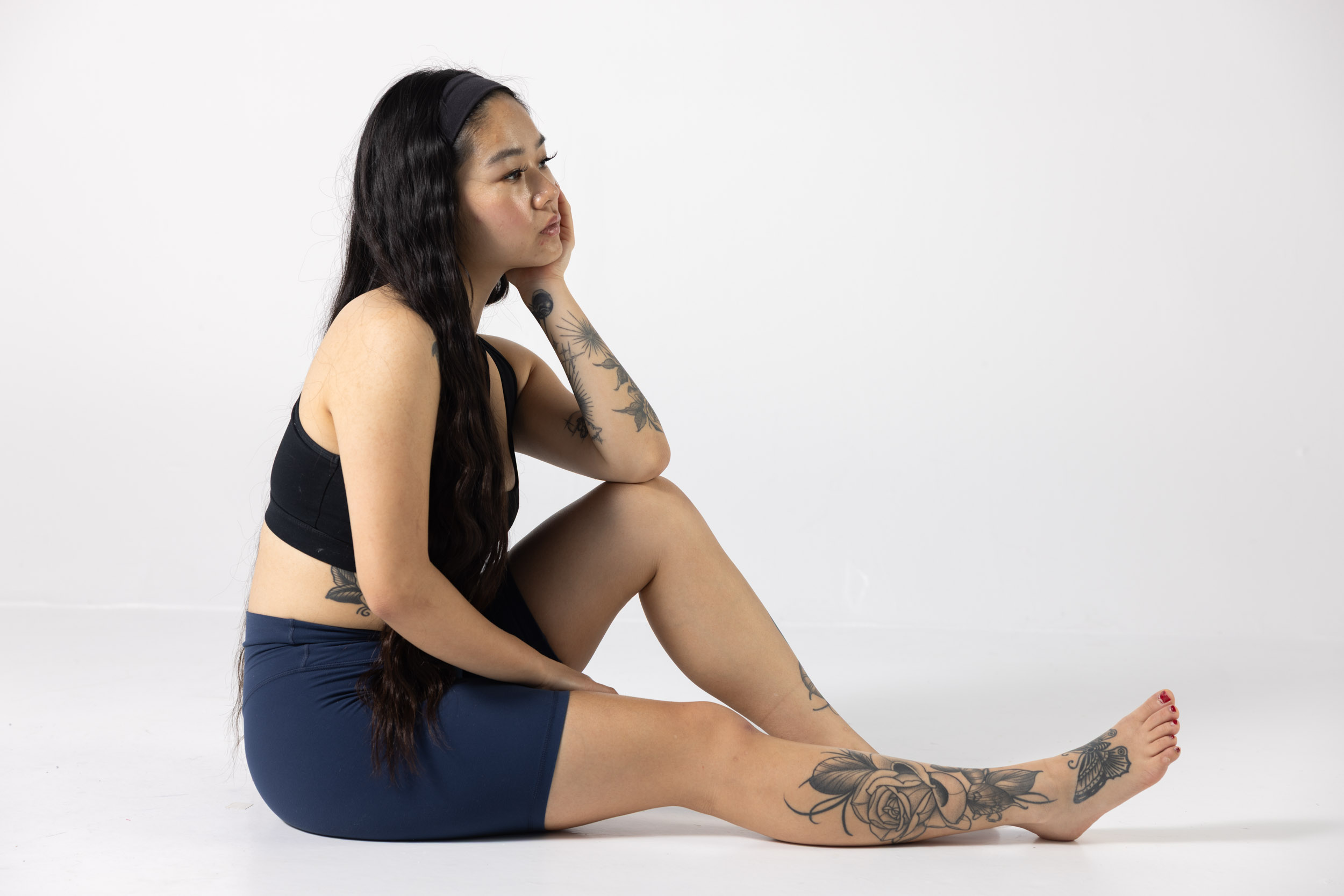
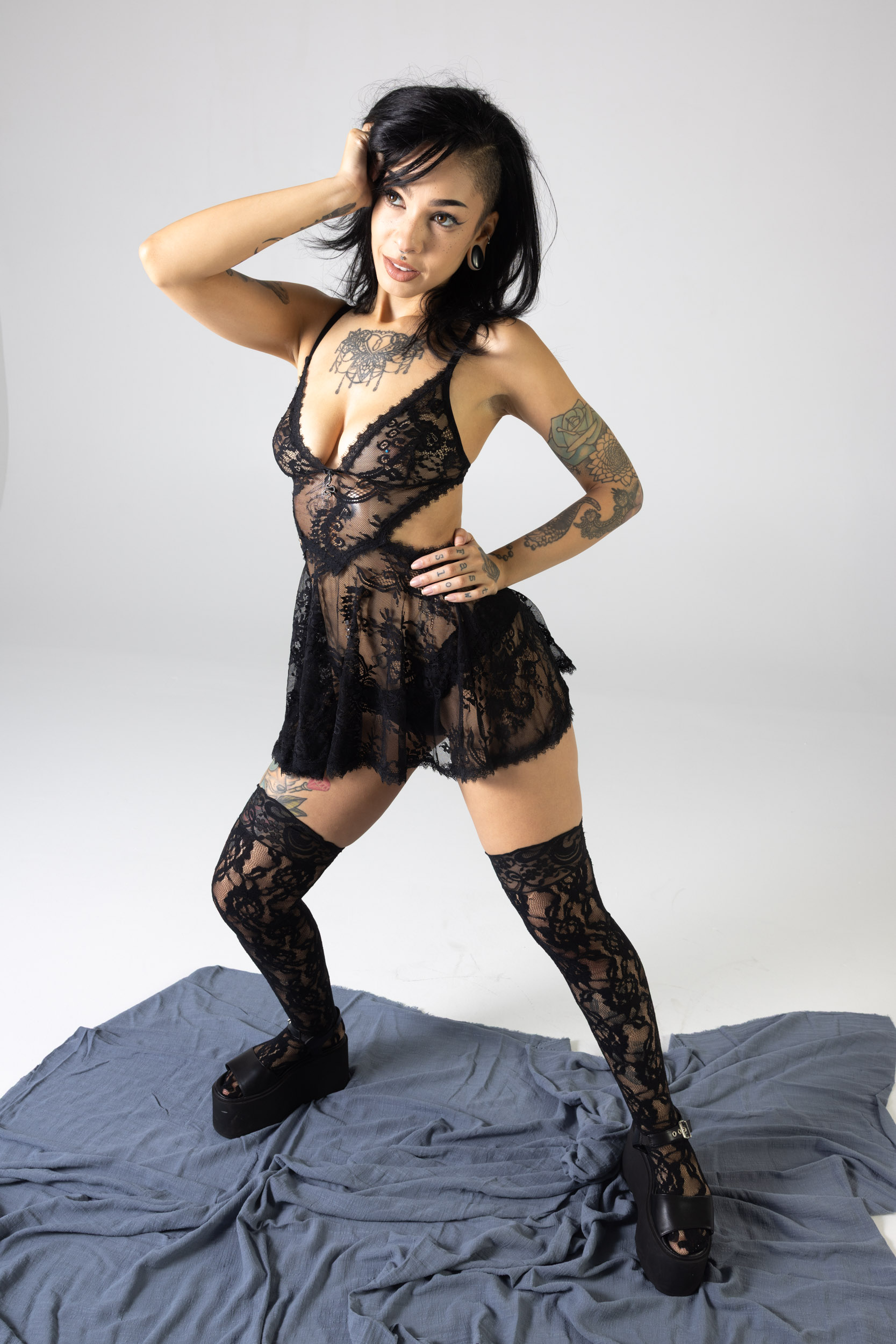
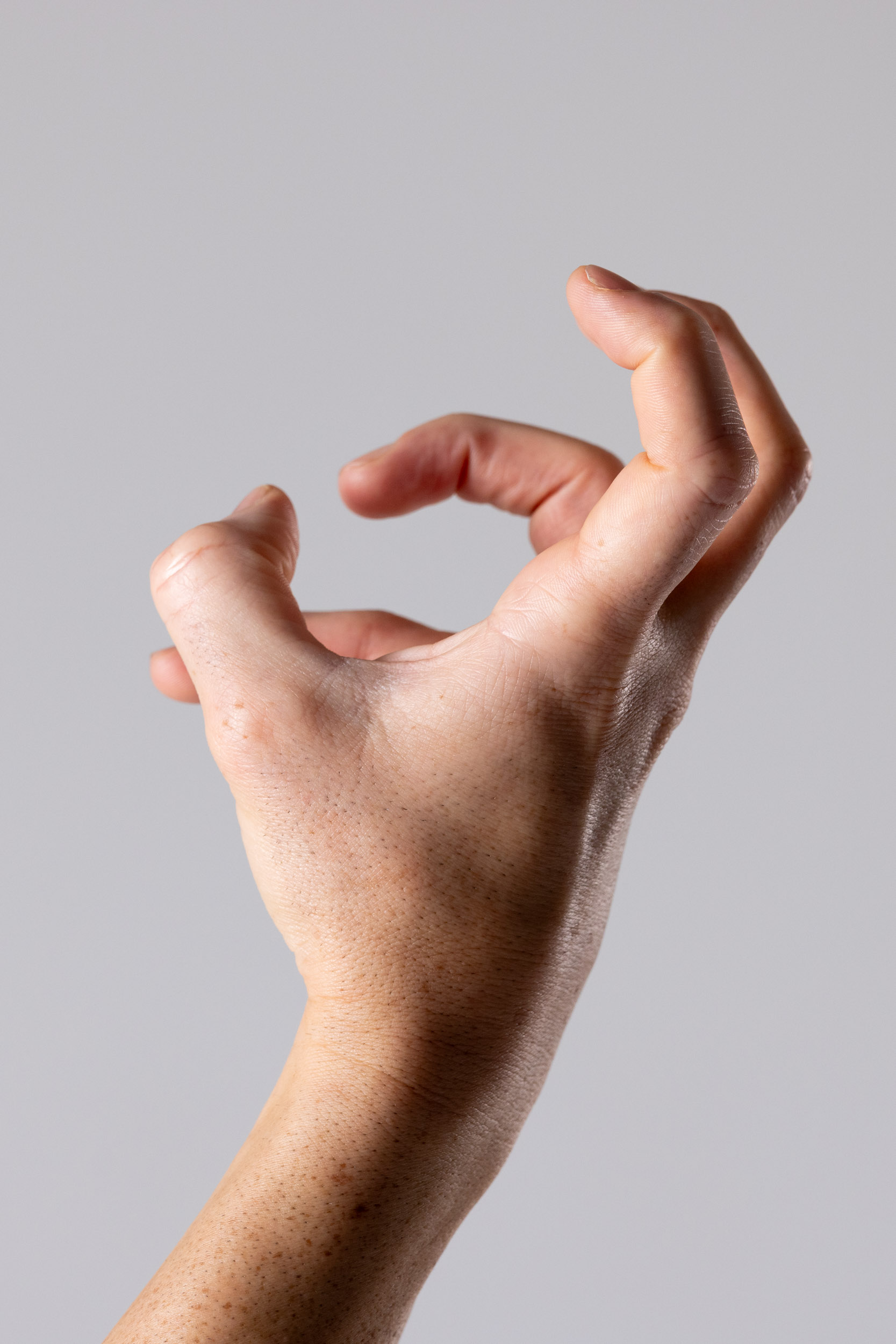
These tabs help you narrow the library more quickly. `Body` is useful for broader full-figure practice, `Anatomy` is better for focused studies like hands, arms, legs, or torso, `Portrait` surfaces head-and-shoulder crops, `Local` lets you temporarily load your own files into the pose viewer workflow, and `Favorites` lets you return to saved references.
If you want to learn more about how this setting works, you can read the explanation in the FAQ.
Customizing Your Session
You can modify the preset durations by adding or removing poses from the existing time categories.
For example, you might want to:
- Add more 30-second poses for gesture practice
- Reduce the number of long poses
- Extend the session with additional timed drawings
You can also create completely custom durations.
The interface allows you to add up to three custom duration fields, letting you design sessions that match your practice goals.
For instance, you could create a session like:
- 10 x 45-second poses
- 5 x 3-minute poses
- 2 x 10-minute poses
If you ever want to return to the original configuration, simply click the Reset button to clear the custom fields.
At the bottom of the settings panel, you'll see two helpful summaries:
- Total session duration
- Total number of poses
These update automatically as you adjust the settings, so you always know how long your practice session will last.
Depending on the gallery you choose, you may also see filters for type and focus. For example, an anatomy gallery can include tags for hands, arms, legs, feet, or torso, which makes it easier to build a more targeted study session.
Navigating the Pose Viewer
Once your session begins, the viewer displays the pose images in a clean, distraction-free layout.
A set of controls allows you to manage the session while you draw.
You can:
- Play or pause the timer
- Move forward to the next pose
- Return to the previous pose
- Close the session
To keep the screen uncluttered, the controls automatically hide after a few seconds.
If you need to access them again, simply move your mouse or tap the screen and the controls will reappear.
Session Information
In the bottom right corner of the viewer you'll see a small information panel that helps track your progress.
This panel includes:
- A countdown wheel showing the remaining time for the current pose
- The duration of the current pose
- The current pose number within the session
These indicators help you stay aware of the timing without distracting from the drawing itself.
Gallery Tabs and Order
Before starting a session, you can browse available galleries and choose the section that matches your study goal.
The main tabs organize the library into broader use cases, including `Body`, `Anatomy`, `Portrait`, and `Favorites`.
Each time you start a new drawing session, the pose gallery is reshuffled. This means the order of the images will change every time you begin a session, giving you a fresh sequence of poses to draw from.
Pose Library also rotates models regularly. You can return each day to practice with a different model, helping keep your drawing sessions varied and engaging.
If you are logged in, the selected gallery tab, your active filters, and your reference type setting all affect which poses appear in the session.
Because of this, the poses and models you see may change depending on whether you are practicing from full-body images, anatomy crops, portraits, favorites, clothed references, or nude references.
Local Tab
Studio also includes a Local tab for users who want to practice from their own reference images.
In the Local tab, you can load images from your device, review them inside the session builder, and then use those images with the Pose Library pose viewer and pose timer.
This feature is intentionally temporary. The images are not uploaded into the Pose Library library, are not stored as part of your account, and are not saved to Pose Library servers. They are only loaded into your current browser session so they can be displayed and paired with your timed drawing session.
If you leave the page or refresh the browser, the loaded files are cleared and need to be loaded again. This makes the behavior explicit: the Local tab is for temporary session setup, not cloud storage or permanent image management.
You are responsible for using only images you have the right to use. Pose Library does not claim ownership of your files and does not review or host them as part of the reference library.