Best Drawing Tablets for Figure Drawing and Anatomy Practice
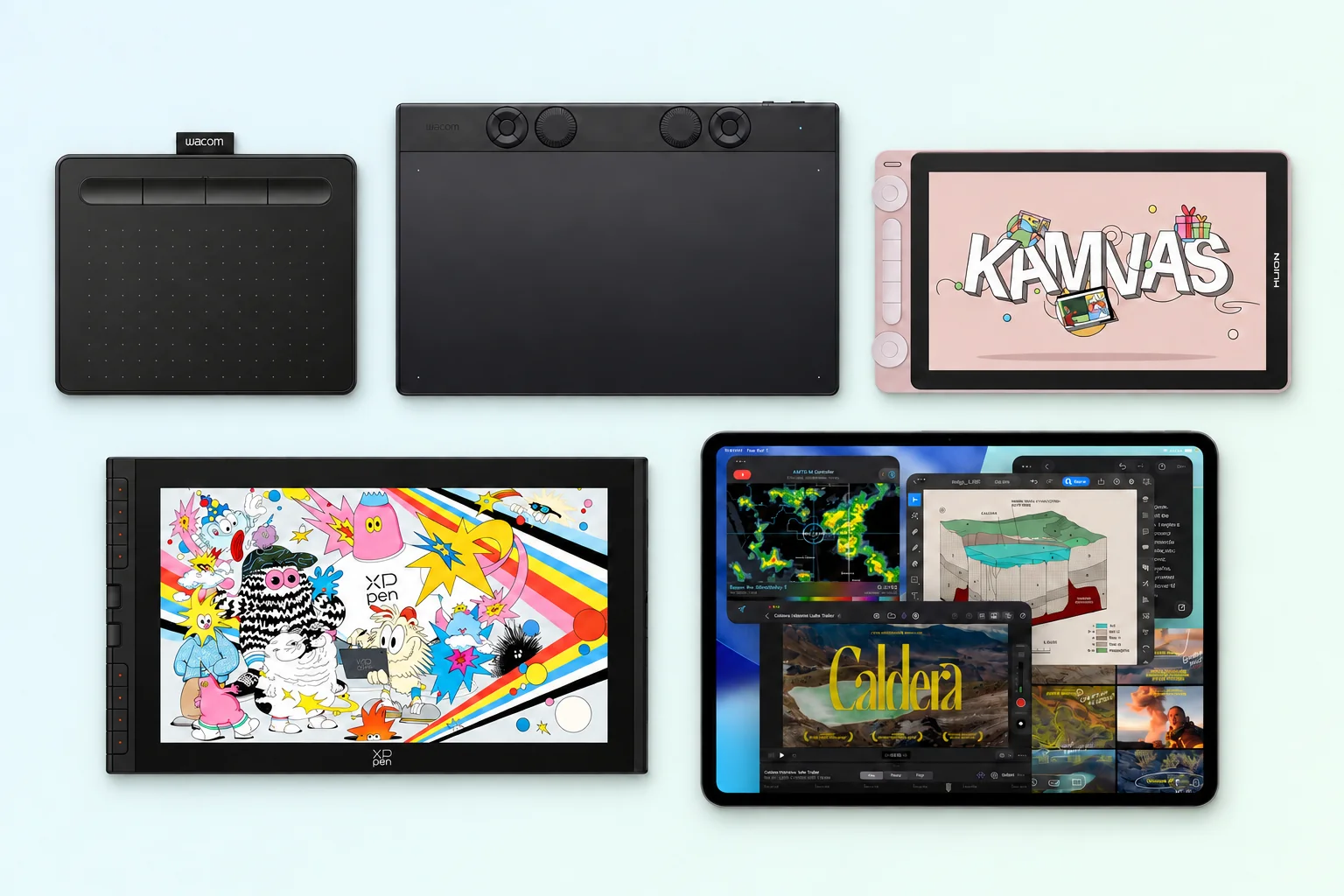
Choose a drawing tablet around your workspace, software, and drawing habits. This guide compares seven options for gesture drawing and anatomy practice, from screenless tablets for an existing computer to pen displays and the standalone iPad Pro.
Quick comparison: which tablet fits your practice?
| Tablet | Type | Screen size | Computer required? | Best use |
|---|---|---|---|---|
| Wacom Intuos | Screenless | None | Yes | Starting digital practice on an existing computer |
| Wacom Intuos Pro (2025) | Screenless | None | Yes | A desktop workflow with customizable controls |
| Huion Kamvas 13 (Gen 3) | Pen display | 13.3-inch | Yes* | Drawing on a screen at a compact desk |
| Huion Kamvas 16 (Gen 3) | Pen display | 15.8-inch | Yes* | Keeping a reference and canvas side by side |
| XPPen Artist 16 3rd | Pen display | 15.4-inch | Yes* | Using dials and shortcut keys while drawing |
| Apple iPad Pro | Standalone | 11- or 13-inch | No | Drawing away from a desk with iPad apps |
| Wacom Cintiq Pro 27 | Pen display | 26.9-inch | Yes | Top-of-the-line pro tablet for a dedicated studio |
*Pen displays need a compatible host device. Selected Android devices may work where the manufacturer supports them; check video output, power, and cables.
Specifications are manufacturer-reported; this guide is based on documentation rather than hands-on testing. Check the model generation, availability, and bundle before buying.
Screenless tablet, pen display, or iPad?
Screenless tablet: Move the pen on the tablet while watching your monitor. It takes some coordination practice, but keeps your gaze on an upright screen.
Pen display: Draw directly on the image using software on a connected host device. Allow room for cables and a comfortable display angle.
Standalone iPad: Draw without a computer using iPad apps. Budget for a compatible Apple Pencil and check that your preferred software has the features you need.
The drawing tablets worth considering
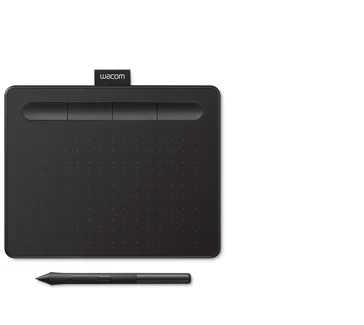
Image: Wacom
Wacom Intuos
- Best for
- Starting digital gesture drawing with a computer you already own.
- Main drawback
- Your hand and eyes work on separate surfaces.
- What you need
- A compatible computer, monitor, drawing app, and tablet driver.
A small model can work for timed gesture exercises, especially if you draw with compact arm movements. A medium active area may feel more natural for broad sweeping lines, depending on your desk and monitor.
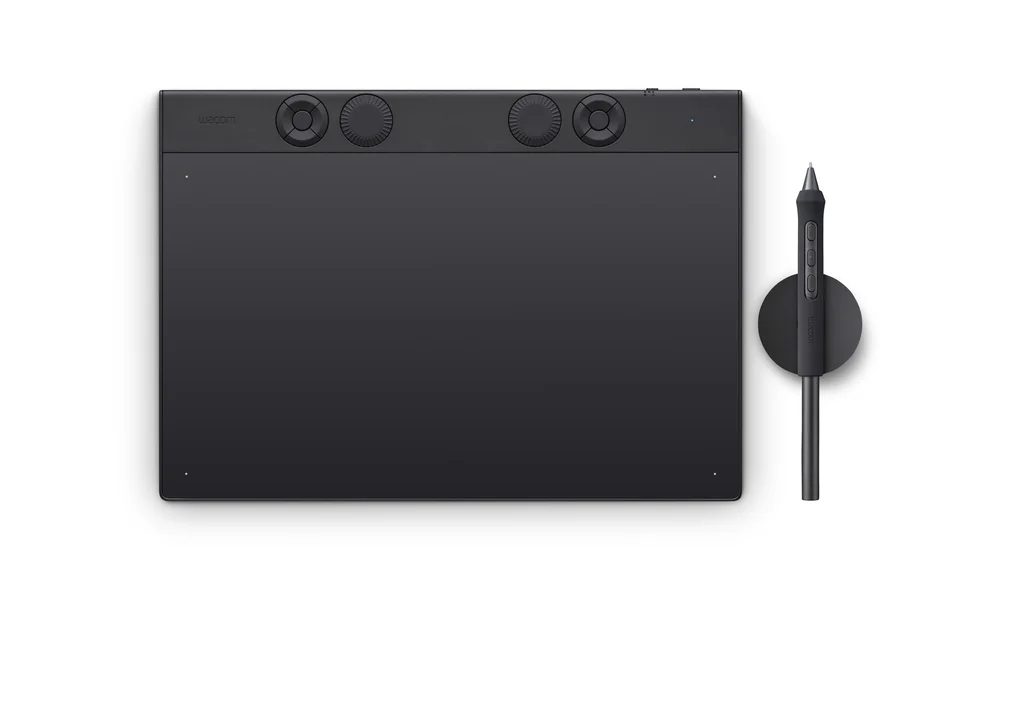
Image: Wacom
Wacom Intuos Pro (2025)
- Best for
- Regular desktop practice with configurable dials and shortcuts.
- Main drawback
- The extra controls may be unnecessary for simple sketching.
- What you need
- A compatible computer, monitor, drawing app, and tablet driver.
The redesigned Intuos Pro uses Wacom's Pro Pen 3, offers Small, Medium, and Large active areas, and supports configurable ExpressKeys and dials. It is still a screenless tablet, so its value lies in workflow control and pen input rather than a built-in display.
For figure artists who regularly switch between brush sizes, undo, canvas rotation, and reference views, programmable controls can reduce interruptions. The Medium size is a reasonable format to compare first if you work at a desk, but available space and drawing habits matter more than a universal size recommendation.
Intuos Pro Small, Medium, and Large: Which Size Fits?
The active area is the surface that responds to your pen. The overall tablet dimensions tell you how much desk space the device needs. These measurements are for the 2025 Intuos Pro, not earlier Intuos models.
| Size / model | Active drawing area | Overall tablet size | Practice fit |
|---|---|---|---|
| Small (PTK470) | 187 × 105 mm 7.4 × 4.1 in | 215 × 163 mm 8.5 × 6.4 in | Compact desks, travel, and shorter pen movements. |
| Medium (PTK670) | 263 × 148 mm 10.4 × 5.8 in | 291 × 206 mm 11.5 × 8.1 in | A balance of desk space and room for flowing gestures. |
| Large (PTK870) | 349 × 195 mm 13.7 × 7.7 in | 377 × 253 mm 14.8 × 10 in | Broad arm movements and a dedicated drawing workspace. |
Dimensions are manufacturer-reported. All three tablets are 4 to 7 mm thick. Source: Wacom Intuos Pro specifications.
Small: Choose this if portability and a clear desk matter most. Its shorter drawing distances suit compact gestures, though you may prefer more room when practicing long, sweeping strokes.
Medium: Start your comparison here for a regular desktop practice setup. It offers more room to move through a full figure than Small while leaving more space for your keyboard than Large.
Large: Consider this if you draw from the shoulder and want room for longer strokes. The trade-off is a larger footprint and more arm travel. More drawing area does not automatically produce better anatomy studies.
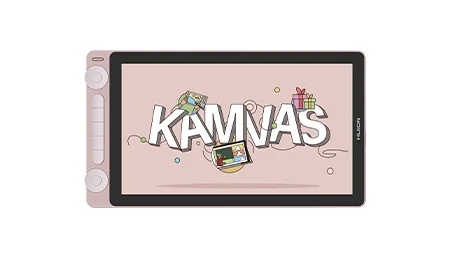
Kamvas 13 (Gen 3), shown in pink
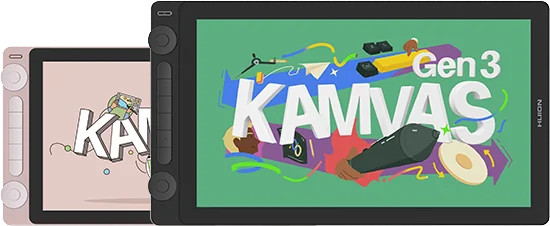
Kamvas 16 (Gen 3), front. Images: Huion
Huion Kamvas 13 & 16 (Gen 3)
- Best for
- Kamvas 13 for a compact desk; Kamvas 16 for more room beside your reference.
- Main drawback
- Both need a host device; the 13 has less canvas space and the 16 takes more desk space.
- What you need
- A compatible host with video output, suitable cables, drawing software, and a stand or support.
Kamvas 13 (Gen 3): A Compact Pen Display
Huion's Kamvas 13 (Gen 3) has a 13.3-inch Full HD screen, a fully laminated anti-glare drawing surface, and shortcut dials and keys. Its size can suit an artist who wants to draw directly on a screen but cannot dedicate a large area of the desk to a display.
For a timed gesture session, the compact surface is enough for a simplified figure, directional lines, and basic volume studies. For longer anatomy drawings, however, a reference image, layers panel, and toolbars can quickly consume the available space. A separate reference monitor or a minimal interface helps.
Kamvas 13 bundles: with stand or stand not listed?
Both packages use the same Kamvas 13 (Gen 3) display and pen. Choose by the included accessories and total price.
| Bundle | Stand | When it makes sense |
|---|---|---|
| Kamvas 13 + ST300 stand | ST300 adjustable stand listed as included | You need a stand with your display. |
| Kamvas 13 (stand not listed) | No stand listed in the box contents | You already own a suitable stand, or the display plus a separate stand costs less. |
Confirm the selected variant and box contents before ordering. A full-featured USB-C cable is not included in the standard package. Huion package and cable details.
Kamvas 16 (Gen 3): More Room for Reference and Drawing
The Kamvas 16 (Gen 3) provides a 15.8-inch display with 2560 × 1440 resolution. That additional working space is useful when you want to keep a pose photograph visible while sketching a full-body figure. It also gives more room to annotate landmarks such as the clavicles, rib cage, pelvis, knees, and ankles.
Compared with a compact display, the larger screen is easier to integrate into a sustained anatomy session, but it occupies more space and needs thoughtful positioning. A stand or arm that supports a comfortable angle can matter as much as the display specification.
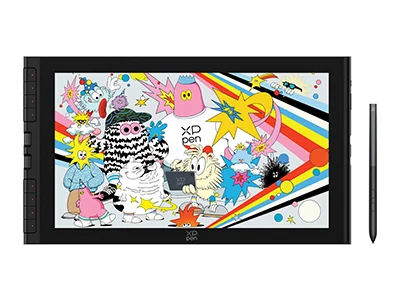
Image: XPPen; screen artwork by Ykha Amelz
XPPen Artist 16 3rd
- Best for
- Pen-on-screen practice with physical dials and shortcut keys.
- Main drawback
- Full HD leaves less detail at this size than the QHD Kamvas 16.
- What you need
- A compatible host device, suitable cables, drawing software, and a supported drawing angle.
The XPPen Artist 16 3rd has a 15.4-inch Full HD display, two X-Dials, customizable shortcut keys, and a stylus. The on-device controls are particularly relevant to repetitive drawing sessions: one dial might adjust brush size while another controls zoom or canvas rotation, depending on the software and configuration.
Its 1920 × 1080 resolution is lower than the Kamvas 16 (Gen 3), although resolution alone does not determine drawing quality. If you keep a large reference panel open, compare how much usable canvas remains after toolbars are visible. XPPen lists a foldable stand in the package, but verify the current retailer bundle.
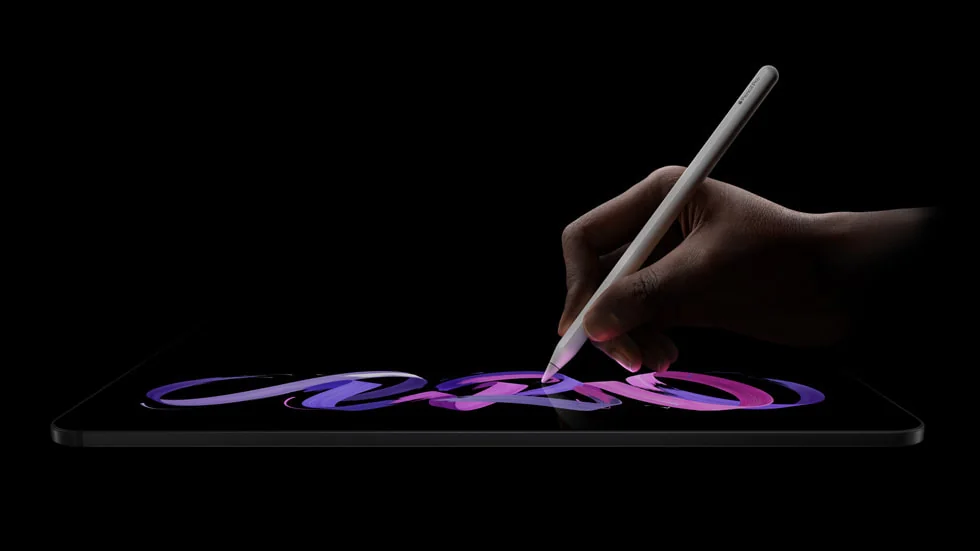
Image: Apple
Apple iPad Pro
- Best for
- Portable sketching and reference studies using iPad apps.
- Main drawback
- Desktop-only software and plug-ins may not carry over.
- What you need
- A compatible Apple Pencil, sold separately, and an iPad drawing app.
The 11-inch model favors portability, while the 13-inch format provides more room for a reference and canvas. Recent M4 and M5 iPad Pro models support Apple Pencil Pro, but Apple Pencil compatibility varies by generation. Check the exact iPad and Pencil combination before purchasing, and include the Pencil in the total budget.
The iPad Pro is attractive if you also need a portable general-purpose tablet. It is harder to justify solely for occasional gesture practice if you already own a capable computer. Desktop-only software, plug-ins, and file workflows may not transfer directly to iPadOS.
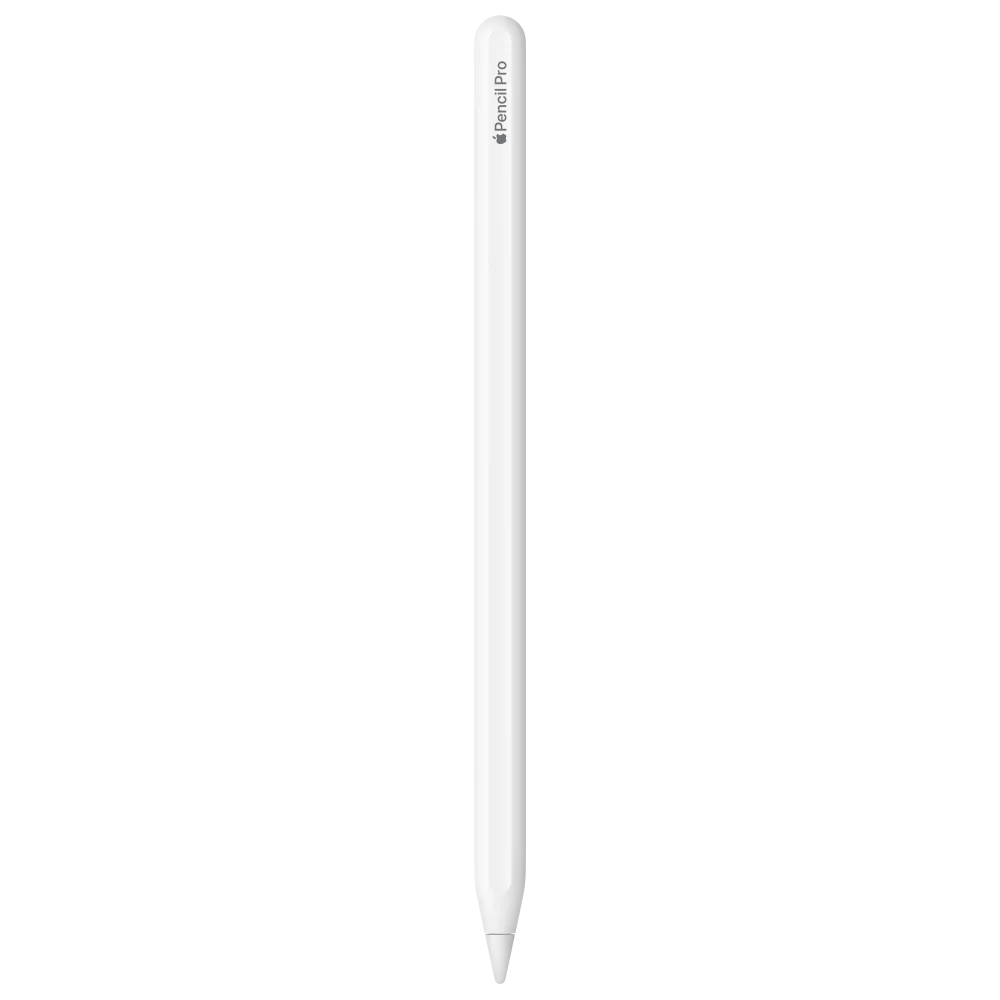
Image: Apple
Apple Pencil Pro
- Best for
- Drawing on a compatible iPad with a separately purchased stylus.
- Main drawback
- It works only with specific iPad models and generations.
- What you need
- An iPad listed in Apple's Pencil Pro compatibility guide.
Check compatibility before buying: Apple Pencil Pro does not work with every iPad. Confirm the exact iPad model and generation against Apple's Pencil compatibility list. The Pencil is sold separately.
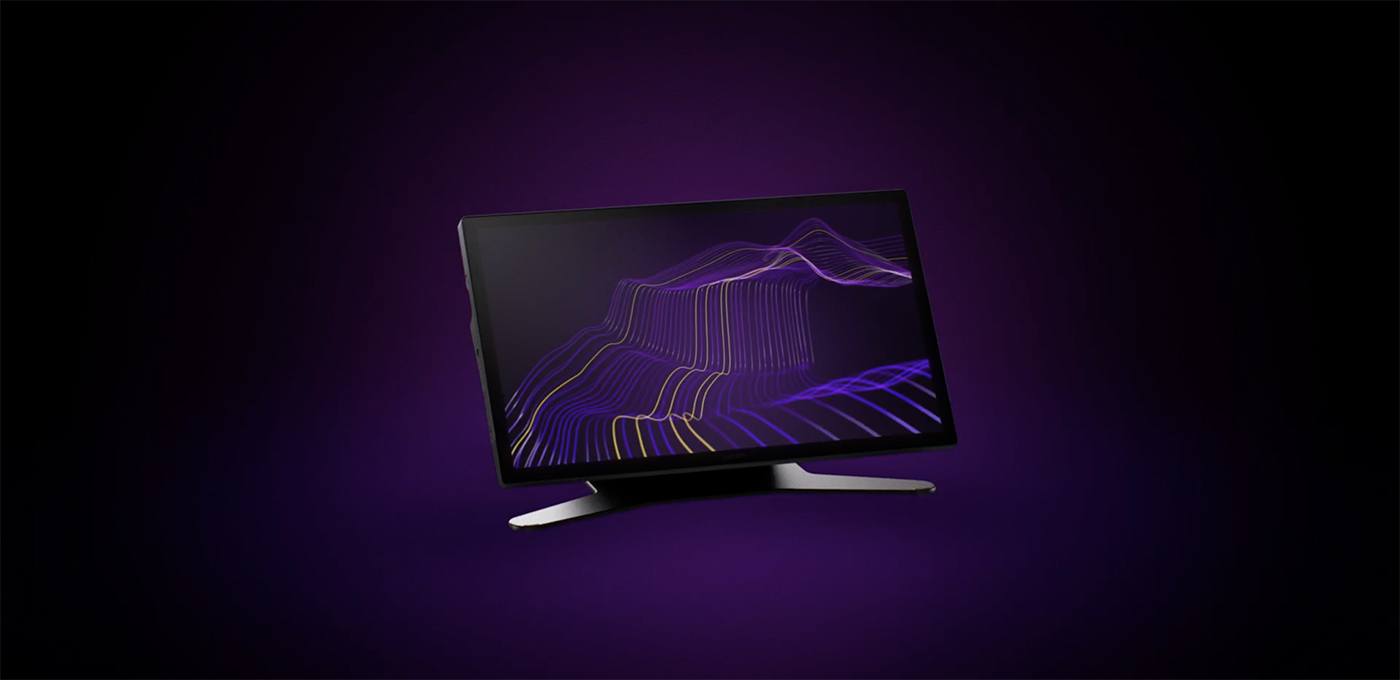
Image: Wacom
Wacom Cintiq Pro 27
Top-of-the-line pro tablet
- Best for
- Professional illustration and figure drawing in a dedicated studio.
- Main drawback
- A premium price and a large footprint, with a stand or arm to budget for separately.
- What you need
- A compatible computer, Wacom driver, drawing software, and a suitable stand or VESA arm.
The Cintiq Pro 27 is our top-of-the-line pro pick for artists building a dedicated desktop workspace. Its 26.9-inch 4K display runs at up to 120Hz and includes Wacom Pro Pen 3, with room for a reference, canvas, and tool panels.
This is a computer-connected pen display. Allow desk space and include a stand or compatible arm in the total cost. The link above goes directly to Wacom's official site and is not an affiliate link.
What matters when choosing a tablet for figure drawing?
Active area and usable canvas. A larger drawing area encourages longer strokes, but it can also demand more arm movement and desk space. Consider the space left after your reference image and software panels are visible, not just the diagonal screen measurement.
Pen response and pressure. A responsive pen matters, but very high advertised pressure-level counts should not decide the purchase on their own. Gesture drawing often works best with a simple brush and clear line hierarchy. Pressure sensitivity becomes more useful when varying line weight, modeling form, or shading.
Screen surface and parallax. A textured or etched surface may feel less slippery than glass. Full lamination can reduce the visible separation between pen tip and image, but comfort is subjective. Manufacturer descriptions cannot replace trying a display in person.
Ergonomics. A screen laid flat on a desk can encourage neck and shoulder strain. Check whether the stand is included, whether the device fits at a comfortable angle, and whether your wrist has room to move. Short breaks and varied drawing positions are valuable regardless of tablet.
Compatibility. Confirm your operating system, drawing app, drivers, USB-C video support, and cable requirements. A USB-C port does not automatically mean a laptop supports video output through that port. For an iPad, verify app features and Pencil compatibility instead of assuming desktop software works identically.
Total cost. Compare the complete setup: computer if needed, tablet, stylus, stand, cables, drawing software, and any accessories. Avoid comparing the sticker price of a pen display with an iPad without including the rest of the equipment.
A 15-minute figure drawing routine using your tablet
You do not need advanced brushes or a large screen to make digital practice productive. Try this short routine with a simple opaque brush and a set of photographic pose references.
Minutes 0–3: Draw six 30-second gestures. Focus on the line of action, the tilt of the shoulders and pelvis, and the overall movement. Avoid facial details and clothing folds.
Minutes 3–9: Draw three two-minute figures. Build each pose with a rib cage, pelvis, and simple limbs. Look for weight distribution and the relationship between the supporting leg and the body's center of mass.
Minutes 9–13: Choose one pose for a four-minute structural study. Mark major landmarks and check proportions against the reference. Use a new layer if you want to compare your construction with the observed silhouette.
Minutes 13–15: Review the sketches. Identify one recurring issue, such as a stiff torso, an oversized head, or unclear weight placement. Carry that specific observation into your next session.
A timer and a dependable reference library will usually contribute more to this exercise than an elaborate brush collection. Pose Library's photographic references can be used as a starting point for these timed studies.
Frequently asked questions
Do beginners need a drawing tablet with a screen?
No. A screenless tablet is a valid way to learn digital gesture drawing and may be the better choice when you already own a computer. A pen display can make hand-to-image coordination more immediate, but it does not replace observational practice.
Is a 13-inch pen display large enough for anatomy practice?
Yes, particularly for gestures, isolated anatomy studies, and single-figure sketches. If you regularly need a full-body reference and a large canvas visible together, a 15- to 16-inch display or a second monitor may feel less cramped.
Does pressure sensitivity matter for gesture drawing?
It can help vary line weight, but it is not the main factor. Gesture studies depend more on clear directional marks, proportion, rhythm, and timing. Even a basic pressure-sensitive pen can be enough for that work.
Can a Huion or XPPen pen display work without a computer?
The models discussed here are computer-connected pen displays, not standalone drawing computers. Some support selected Android connections, but those depend on device and port compatibility. Check the manufacturer's requirements before assuming a particular phone or tablet will work.
Is an iPad Pro better than a pen display?
Not automatically. An iPad Pro is more self-contained and portable. A pen display may fit better if your preferred drawing and animation software runs on a desktop computer. Choose based on the software and practice environment you actually use.
Which tablet should you choose?
Choose the setup that removes friction from your practice: enough room for your strokes, software you enjoy using, and a comfortable place for your reference. If you are unsure about screenless drawing, try one before committing to a more expensive setup.
Before ordering, check the exact model, host-device or Pencil compatibility, and the full cost of stands, cables, apps, and accessories.